
Description
Build AI chatbots and automation agents for WordPress without coding. Use ChatKit to create AI assistants and workflows. The built-in Chatbot Inspector module helps locate pages containing S2B AI Assistant shortcodes as well as chatbots and shortcode placements from popular third-party chatbot plugins. It can also detect popular widget-based chatbots across your website. Generate images using the OpenAI API.
Core Modules
🤖 Chatbots
Develop multiple AI chatbots with different styles and behaviors on different pages of your website. You can choose models from different AI API providers: OpenAI, Anthropic, xAI, Deepseek. It allows to personalize the appearance of the chatbot: colors, styles, text; Personalize its position on the screen, window size, chatbot behavior by choosing: model, instruction, temperature, tokens, etc.
Deep Customization feature
This allows you to create a unique view for each chatbot using custom css rules. To do this, you need to find the ‘Deep customization’ section on the « Chatbots » tab, add the unique html id of the closed and opened chatbot. You can then add CSS rules to each closed and open view of any chatbot. Separate css rules can be applied to different chatbots.
Chatbot view modifications
Use shortcode attributes to change how chatbots are displayed.
[s2baia_chatbot view=embedded]— display chatbot directly inside the page without a modal window[s2baia_chatbot view_mode=fullscreen1]— open chatbot in fullscreen mode automatically after page load[s2baia_chatbot view_mode=fullscreen1 hideclose=1]— fullscreen chatbot without close button
Available in S2B AI Assistant Pro
- Restrict chatbot access by user
- Link chatbot access to WooCommerce products
Learn more about restricting chatbot access
🔍 AI Chatbot Inspector
Detect chatbots from supported WordPress chatbot plugins and find where they are used across your website.
Features
- Detect supported chatbot plugins
- Locate pages/posts where chatbot shortcodes are inserted
- Scan shortcode placements
- Inspect chatbot integrations across your website
Supported plugins
- AI Engine
- Tidio
- Buttonizer
- Chatway
- LiveChat
- S2B AI Assistant
- and more
Available in S2B AI Assistant Pro
- Restrict access to chatbots from supported plugins by user
- Link third-party chatbot access to WooCommerce products
Learn more about chatbot access control
⚙️ ChatKit
ChatKit allows you to connect OpenAI Agent workflows directly from the browser and build AI agents without creating your own backend infrastructure.
To learn how to create AI agents using the visual Agent Workflow Builder tool, visit: Article or Guide
📈 AI Tools
Includes three AI-powered SEO agents:
- SEO Readability Rewrite (HTML only) – Improves clarity while preserving HTML structure.
- SEO Compare (Post vs URL) – Benchmarks your post/page against an external URL.
- SEO Compare URLs – Compares two external URLs and generates optimization suggestions.
How It Works
Each agent runs as a task:
* Configure inputs
* Content is fetched and analyzed
* AI generates a structured SEO report
* More detailed information can be found on this page
Execution Modes
Tasks run either:
* Manually, or
* In Background (WP-Cron queue)
For background processing, WP-Cron must be enabled.
If DISABLE_WP_CRON is set to true, queued tasks will not run but you can still run them manually.
Available in S2B AI Assistant Pro
* Multiple Tasks Per Agent find more
🎨 Image generation
Image generation feature requires only API key. It is ready to use by default. You can configure generation options on the Image Generation tab. On the same tab you can generate and store new images using Dall-e-2 and Dall-e-3 models.
🧠 Content-Aware Chatbots (RAG)
Build AI chatbots that answer questions using your website content.
The plugin supports Retrieval-Augmented Generation (RAG) using external vector databases, Embedding API, and Chat Completion API.
Upload selected posts or pages into a vector database to enable semantic search across your website content. When visitors ask questions, the chatbot retrieves relevant content and sends it together with the user query to the AI model.
This allows you to:
- Build website-aware AI chatbots
- Reduce Chat Completion API costs
- Limit answers only to your website content
- Improve response relevance using semantic search
Learn more:
* Content-aware chatbot
* RAG setup guide
🧩 Additional Features
- Conversation logging
- Token usage statistics
- Fullscreen chatbot mode
- Embedded chatbot view
- allows you to update models directly from OpenAI and independently choose the model to use from OpenAI API platform https://platform.openai.com/docs/models .
- You can use the same chatbot with different views across different pages.
External Services
This plugin uses external API when it performs following functions:
-when it runs semantic search it sends requests to vector databases: Pinecone
-when it builds vector database from content of your website it sends content selected by you to vector database APIs:Pinecone
-when you select delete indexed content then it sends deletion requests to APIs: Pinecone
-when clients of your website try to search information then plugin sends user’s request to OpenAI API for build embedding and then sends embedded request to vector database APIs for doing semantic search:Pinecone
-when clients of your website try to send request to chatbot plugin sends user’s request to OpenAI API. Also it can send request to vector database APIs for doing semantic search:Pinecone
-when clients of your website try to send request to chatbot plugin sends user’s request to xAI API
-when you or clients of your website try to generate image then plugin sends request to OpenAI API.
By using this plugin, you consent to sending data to OpenAI’s and/or Pinecone’s servers, which may include user queries and other relevant information.
Please ensure compliance with xAI, OpenAI’s, DeepSeek & Pinecone terms and any applicable data privacy laws.
- Service Providers:
- Terms of Use:
- Privacy Policies:
Pinecone vector database
The S2B AI Assistant box makes use of the API provided by Pinecone. This plugin does not collect any data from your Pinecone account. The information sent to the Pinecone servers mainly includes the content of your website and the specified context. The usage information displayed in the add-on’s settings is only for your reference. To obtain accurate information about your usage, it is important to check it on the Pinecone website. Additionally, please make sure to review their Privacy Policy and Legal documents for more details.
Open AI
The S2B AI Assistant makes use of the API provided by [OpenAI](https://openai.com/blog/openai-api or [Reference]https://platform.openai.com/docs/api-reference). This plugin does not collect any data from your OpenAI account apart from the number of tokens used. The information sent to the OpenAI servers mainly includes the content of your article and the specified context. The usage information displayed in the add-on’s settings is only for your reference. To obtain accurate information about your usage, it is important to check it on the OpenAI website. Additionally, please make sure to review their Privacy Policy and Terms of Service for more details.
Disclaimer
The S2B AI Assistant is a plugin that allows users to integrate their websites with AI services such as OpenAI’s ChatGPT, Claude, xAI’s Grok, DeepSeek and Pinecone vector database https://www.pinecone.io/ . In order to use this plugin, you (user of this plugin) must have own API keys and adhere to the guidelines provided by the chosen AI service. When utilizing the S2B AI Assistant, you (user of this plugin) are required to monitor and oversee the content produced by the AI, as well as handle any potential issues or misuse. The developer of the S2B AI Assistant plugin and other related parties cannot be held responsible for any problems or losses that may arise from the usage of the plugin or the content generated by the AI. Users are advised to consult with a legal expert and comply with the applicable laws in their jurisdiction. OpenAI, ChatGPT, and related marks are registered trademarks of OpenAI. Grok, xAI and related marks are registered trademarks of X.AI LLC. Author of this plugin is not a partner of, endorsed by, affiliated with or sponsored by: OpenAI I, L.L.C.,OpenAI Ireland Ltd , xAI LLC, DeepSeek or Pinecone Systems, Inc.
This plugin is intended for users 18 years of age and older. If users under 18 access this plugin, they must do so under direct adult supervision. Parents, guardians, teachers, or other responsible adults should review all AI-generated content before use and ensure it’s appropriate for the intended audience. This plugin generates AI content for informational purposes only. Content generated by this plugin should NOT be used as professional legal, medical, or financial advice without proper review by qualified professionals. Always consult licensed attorneys, medical professionals, or financial advisors for matters requiring professional expertise.
Screenshots

General settings of the plugin. 
Models settings 
Instructions settings 
Edit/Generate content in post/page metabox of edit screen 
Expert tab allows to to customize request to Chat completion API 
Chatbot minimized window 
Chat bot maximized window 
Chat bot styles configuration 
Chat bot Assistant API Configuration 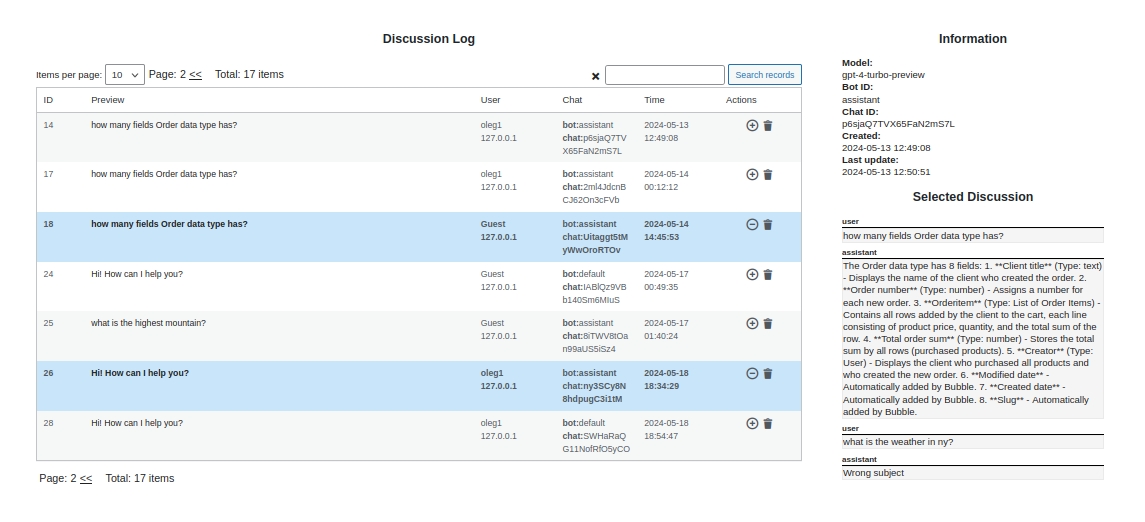
Chat bot discussion log 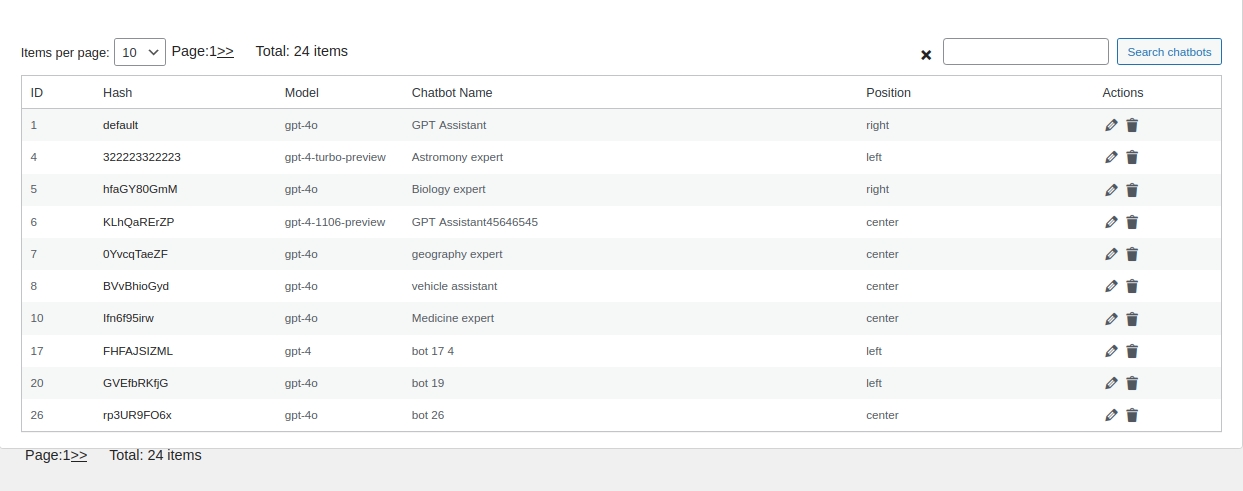
Create multiple chatbots with different styles and behavior 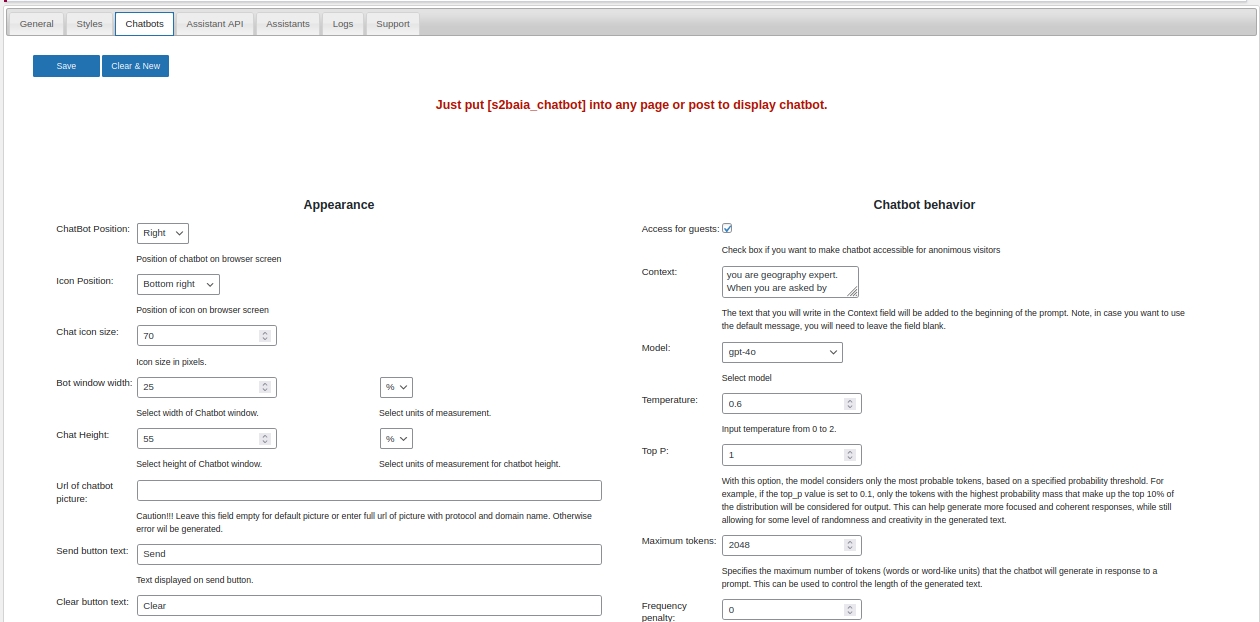
Chatbot configuration page 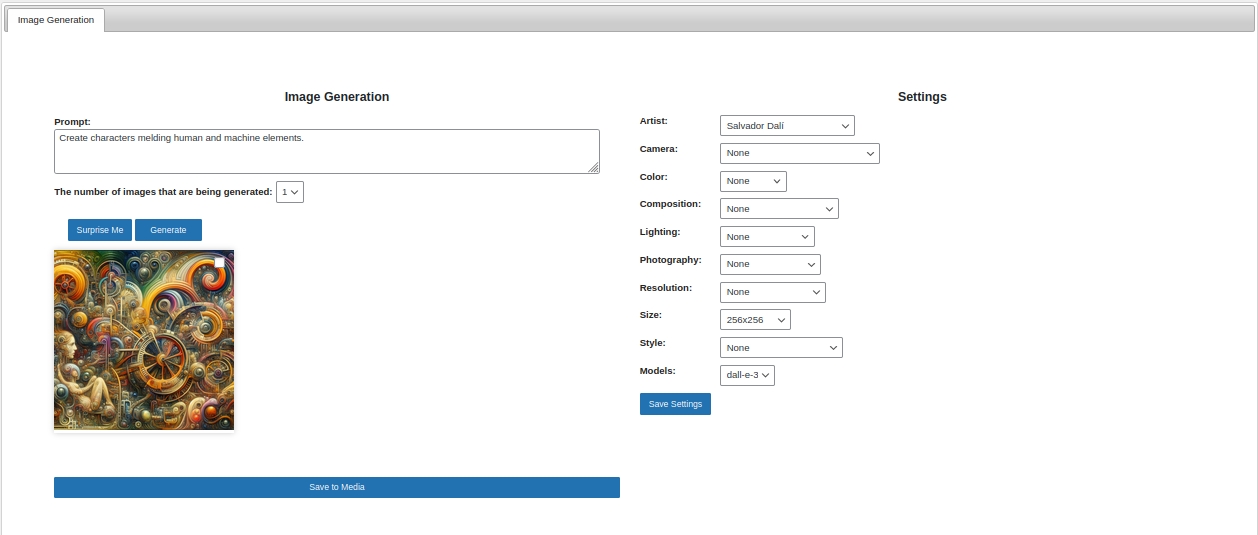
Image generation page 
Store generated Image into Media Library 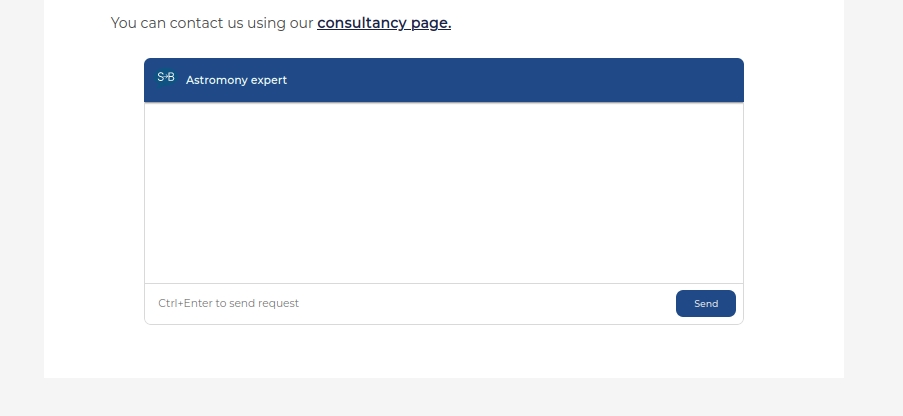
Modalless option of chat bot
Installation
Quick setup:
-Open account at OpenAI and get API key
-Go to /wp-admin/admin.php?page=s2baia_settings page of this plugin. Input copied API key in the ‘Open AI Key:’ field of the ChatGPT tab. You can copy API key on api keys page
-Switch to Models tab. Click on the ‘Refresh from OpenAI’ button. It updates models from OpenAI server. Select Models which you want to use. Select the Edit checkbox for models that will be used with chatbots and text manipulation. Select the Expert checkbox for models to be used in the Expert playground. Finally click the Save button. You can now use the S2B AI Assistant plugin.
-You can customize the position, appearance, behavior of the chatbot on the ChatBot configuration page /wp-admin/admin.php?page=s2baia_chatbot. On this page, you can create many chatbots that differ in their appearance, position and behavior.
-To get the chatbot operational, simply insert the shortcode [s2baia_chatbot] to any post or page
-If you want to use different chatbots on different pages, add a shortcode in the format [s2baia_chatbot bot_id=generated_hashcode] to any page or post.
Detailed setup and configuration:
Initial configuration.
- Go to Settings page /wp-admin/admin.php?page=s2baia_settings. In the ChatGPT tab fill your API key in the ‘Open AI Key:’ . You can generate API key on this page: https://platform.openai.com/account/api-keys
- You can fill other fields on this tab or leave them by default.
Chat GPT Models configuration.
3.Switch to Models tab. Click on the ‘Refresh from OpenAI’ button. It updates models from OpenAI server.
4.Select Models which you want to use in different functions of our plugin. Finally click ‘Save’ button. Select the Edit checkbox for models that will be used with chatbots and text manipulation. Select the Expert checkbox for models to be used in the Expert playground. Remember that not all models are suitable for chatbots and word processing. That means you can get error response like this one ‘This is not a chat model and thus not supported in the v1/chat/completions endpoint. Did you mean to use v1/completions?’ when you try to use them. You can play with selection and deselection models to find best that fit to your needs.
For more information about selecting models read
AI Chatbot setup.
Open Chatbot menu page in wp-admin. You can see such tabs:
General, Styles, Chatbots,Assitant API, Assistants, Logs and Support. On General, Styles You can customize default behavior, appearance and view of chatbots. In particular you can select ChatBot position, ChatBot size, model, colors of chatbot’s elements etc.
If you want to use different chatbots on different pages then create bot in Chatbots tab and then put shortcode in format [s2baia_chatbot bot_id=automatically_generated_hashcode] into any page or post. In addition, the plugin allows you to create AI Assistants using the Assistants API. You can create Assistants in Assistant API and or in Assitants tabs. Read below on how to do this.
Notice! Chatbot view parameters like position, size, colors are affected by caching. When you found that you have changed chatbot parameters, but view has not changed then try to clear cache then reload page.
Semantic search/RAG setup.
1.Open account at pinecone. Create empty Index there, set the dimension to 1536, and choose cosine for the metric.
2. Get your API KEY from https://www.pinecone.io/
3.Open RAG wp-admin page of S2B AI Assistant
4.Fill field ‘Pinecone API Key:’ with API key
5.Click Sync indexes button. It should add your Pinecode Index in Pinecode Index field. Select it in dropdown box.
6.Select Embedding model with 1536 dimension.
7.Select other parameter on this page and click Save button.
8.Go to Pinecone tab and select content pages or posts from left list and add them into right list.
9.Open ChatBot wp-admin page of S2B AI Assistant plugin.
10.Go to ‘Chatbots’ tab and create new chatbot or select some among created before.
11.Make checked Use embedding (RAG) checkbox and select pinecone in Select index (RAG) field in chatbot configuration.
12.Click Save button
13.Put chatbot’s shortcode to any page or post on your website
14.Try to use
More detailed instruction on how to set up RAG feature you can fin on this page.
FAQ
-
How many different chat bots can I create?
-
As many as you want. Each chatbot can have different position, size, colors, behavior and other elements.
-
Can I customize the appearance of the chatbot?
-
Yes. You can change position, size, colors, behavior of each chatbot separately in Chatbots and Assistants tabs of configuration page.
-
Which difference between chatbots and assistants?
-
Actually they are two different types of chatbot. Assistants use OpenAI Assistant API, while Chatbots use OpenAI completion API to answer visitor’s questions. Using Assistant API you can upload file to add additional information to chatbot’s knowledge database. This allows you to create content aware chatbot.
-
How can I change icon of chatbot
-
First upload icon to Media Library. Then copy its url and paste it into « Url of chatbot picture: » field.
-
Which OpenAI models does the plugin use?
-
Any model that is accessible for your OpenAI account. You just need to open Settings page and switch to Models tab. After click ‘Refresh from OpenAI’. All models will be attached to plugin. Then just select models you want to use.
-
Is it possible to create downloadable files embedded in a chatbot response?
-
Yes. please read this article
-
How does S2B AI Assistant handle image generation?
-
S2B AI Assistant leverages the DALL-E model for image generation. You can specify prompts in the command line within the plugin, and S2B AI Assistant will generate unique images, logos, banners, and more, requiring no design skills from the user.
-
The S2B AI Assistant is NOT working in the front end.
-
The primary cause for this issue is often incorrect theme coding and jQuery being loaded from an external source. WordPress core already includes jQuery, and as per WordPress standards, it should be included using wp_enqueue_script. https://developer.wordpress.org/reference/functions/wp_enqueue_script/ . Verify if this is happening in your theme.
-
How to use Grok model in Chat bot
-
You need to register in xAI https://x.ai/api and get API key. After open Settings page of S2B AI Assistant plugin and enter API key into xAI Key field. After this you are able to select one of then xAI models in each Chatbot page.
Reviews

Contributors & Developers
“S2B AI Assistant – ChatBot, Chatbot Inspector, Chatkit, Image Generator” is open source software. The following people have contributed to this plugin.
Contributors
Interested in development?
Browse the code, check out the SVN repository, or subscribe to the development log by RSS.
Changelog
1.9.4
- Fix readme
1.9.3
- Improvements of admin interface
- Added button to view pages where chatbots are used.
1.9.2
- Updated xAI models list
- Updated Claude models list
- Added Chatbot Inspector that helps WordPress administrators detect where S2B AI Assistant shortcodes are placed. It also helps to find popular third-party AI chatbot plugins (shortcode and widgets based) across their website.
1.9.1
- Fix missing method error
1.9.0
- Added file upload support for Chatkit.
- Added AI-based automation for comparing and analyzing content.
- Added the SEO Readability Rewrite agent, which rewrites a post if its Flesch score falls below a defined threshold.
- Added the SEO Compare (Post vs URL) agent. It compares a post’s content with content from any external URL.
- Added the SEO Compare URLs agent, which compares content from two external URLs.
- Added new Claude and Grok models.
1.8.0
- AI Agents using Visual OpenAI Agent Builder and Chatkit support.
- Added ability to choose exactly which users can access each chatbot and e-commerce integration (Pro feature).
1.7.9
- Add chat persistence feature.
- Security fix. Hardened file upload handling: added strict file type validation and limited uploads to safe document formats.
1.7.8
- Fix chat caching.
1.7.7
- Small addition to usage statistic
1.7.6
- Fix integrations conflict. Add tokens usage statistic
1.7.5
- Quick fix to add basic GPT-5 model support. Only chat completion API. Full support is coming.
1.7.4
- Add Anthropic Claude support
- Add extended Markdown support
1.7.3
- Update xAI models
- Fix access issue to plugin config pages
- Fix links break during Markdown transformation
1.7.2
- Add DeepSeek integration
- Adding partial support of Markdown in API responses
1.7.1
- Refining queries by adding keywords to each search request that is sent to the semantic database
- Adding native way of communication between Chatbot and Assistant API.
1.7.0
- Add xAI Grok model support for chatbot
1.6.8
- Add custom css to embedded view
- Assistant fix
- Add feature that allows to forget uploaded file for Assistant API
- Add feature that allows to download files created by Assistant API
1.6.6
- Security fix
- Fix initial chatbot creation issue
- Add o1 models support:o1-mini, o1-preview
- Improve interface
1.6.4
- Add RAG support
- Fix upload file on Assistant API tab.
1.6.3
- Allow to apply custom css rules to any chatbot and assistant
- Fix sizes of textarea elements in configuration page
1.6.2
- Add feature to copy shordcode of chatbot
- Make default models: gpt-4o, gpt-4o-mini, gpt-4
1.6.1
- Add ability to run chatbot without modal window
- Add view_mode parameter which allows to modify view of chatbot via shortcode
1.5.9
- Added ability to show notification that explains users that conversation is logged
1.5.8
- Feature that allows you to create multiple different Assistants
1.5.5
- Fix deprecation message
1.5.4
- Fix logging feature
1.5.3
- Feature that allows create different chatbots for different pages. Removed outdated gpt 3.5 models as default.
1.5.2
- Conversation Logging feature added for other apis
1.5.1
- Conversation Logging feature added
1.4.2
- Fix configuration
1.4.1
- Added content aware AI chatbot using Assistant API
1.3.3
- Small fixes
1.3.2
- Small fixes
1.3.1
- Added AI chatbot feature= 1.2.2 =
- Adding fixes
1.2.1
- Image generation feature added
1.1.2
- Security fixes
1.1.1
- Add feature that allows to change access to different parts and functions of plugin.
1.0.1
- Some ui improvement.
1.0.0
- Launch!